Add Subtract Fractions
'Spin the "Geogebra Wheels" to add and subtract fractions'
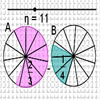
Syllabus item NON-calculator methods : Use the four operations for calculations with fractions
The following geogebra activities require you to move the slider and find a common slice of pie that fits perfectly into both fractions. Move the point on the third circle to show visually what the fractions add up (or subtract) to make. Once you have found this common piece of pie (common denominator) it should make it a lot easier to work out the denominator and numerator of the final fraction. Enter your numerical answer into the Excel spreadsheet to check your answer. See the video below for an overview of the activity:
Resources
For this activity you need the  Add Fraction, Subtraction Fraction and Mixed Number applets below - please scroll down.
Move the slider on the below applets to try and find the fraction that covers perfectly both the shaded pieces of pie - this is the common denominator of the two fractions! Now move the point on the third circle to show visually what they add up to before entering all fractions into Excel:  Adding and Subtracting Fractions to check if you are right or not.
Adding Fractions
Subtracting Fractions
Mixed Numbers
Help with Geogebra and: Why add fractions, why not just use decimals?
Description
It's probably best to start by looking at the two videos above that give an overview of each activity.
- Move the slider in the embedded Geogebra files above (see Resource section) to try and find the fraction that perfectly covers both shaded pieces of pie (this fraction is called the common denominator of the two fractions).
- Move the point on the third circle to show visually what they add up.
- Enter all fractions from the question and your answer into Excel: "Adding and Subtracting Fractions" file to check if you are right or not.
- If you get the message "Not a common denominator" this means that you have found an equivalent fraction, but not one that works for both fractions.
- If you get the message "Not the LCM" this means that you have found an equivalent fraction that works for both fractions. However, it is not the Lowest Common Multiple, or the simplest equivalent fraction. You should be able to find a smaller number of divisions that fits perfectly, both fractions.
- Do you notice any patterns in the equivalent fractions and the original fractions? Can you find a way of adding and subtracting fractions just using the numbers alone, without using the circles? Is your method the same for Adding Fractions 1 and 2 as it is for Adding Fractions 3 and 4?
Tags: add, subtract, fractions, equivalent, excel, geogebra